General
The 3D Panel Texture is a special texture and can only be applied to 3D OBJs. Any OBJ, not just the Cockpit OBJ, can utilize the 3D Panel Texture in addition to its own native texture. For a mesh within an OBJ to use the 3D Panel Texture, then those Meshes must be assigned a material in Blender that have been configured to use the Panel texture (See XP2B User Manual). Mesh groups (TRIS) in an OBJ using the Panel texture will be bounded by ATTR_cockpit / ATTR_no_cockpit directives in that OBJ. If these directives do not exist in an OBJ, then that OBJ is not using the 3D Panel Texture.
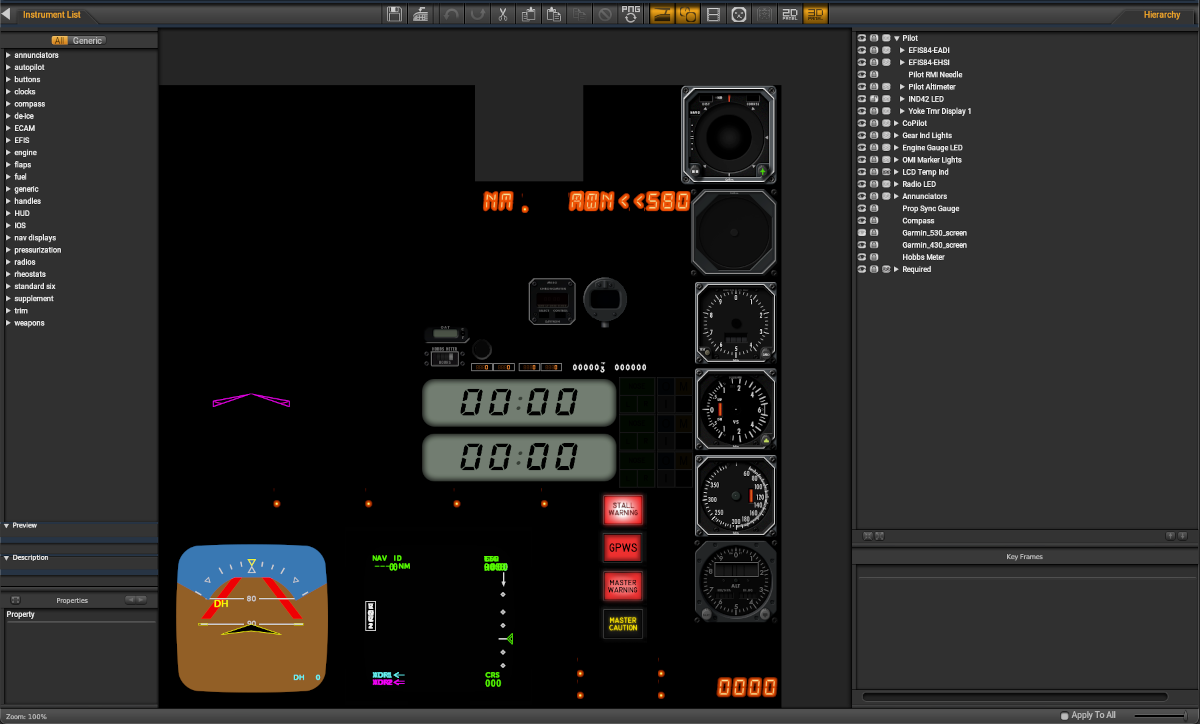
The 3D texture is essentially a Motion Graphics Animating Texture and is therefore suitable for any 2D animation that you need to map to 3D polygons. In the early days of the 3D Panel, it was used to map all of X-Plane's 2D instruments to simple 3D polygons; however, as computer graphics power increased and more artists created fully 3D mechanical instruments with polygons, it is not used as much for steam gauge or other mechanical instruments as show on the right side of the 3D panel texture above. In most cases nowadays, the 3D Panel Texture is used to contain animated graphics typical of devices with an 'electronic display'. This includes EFIS screens and LED/LCD displays, which are the most common instrument types put on the 3D panel texture (see screenshot at bottom of page).
In addition, plug-in authors can draw dynamic graphics on the 3D panel texture using X-Plane's SDK and indeed this is where most 3rd party EFIS screens are drawn; however, this paradigm is changing somewhat. As of X-Plane 12.1, plugin authors should utilize the XPLMAvionics API to create any 'standalone EFIS devices', i.e. any device that displays its output on a single screen.
The tools on the 3D Panel editor are exactly the same as those found on the 2D Panel. See the 2D Panel page page for tooltips and descripts of the tools.
3D Panel Texture Screenshot
Because the 3D Panel texture is dynamically generated and drawn at Run-Time in X-Plane, it does not look the same in Plane-Maker as it does in X-Plane. This can make it challenging to UV map your 3D polygons as this texture only exists in X-Plane's memory and is frequently changing. X-Plane has a command that allows you to export out a snapshot of the 3D Panel texture at the time you execute the command. In the screenshot below, the command has been remapped to a 3-key combo, by default it is a 4-key combo.

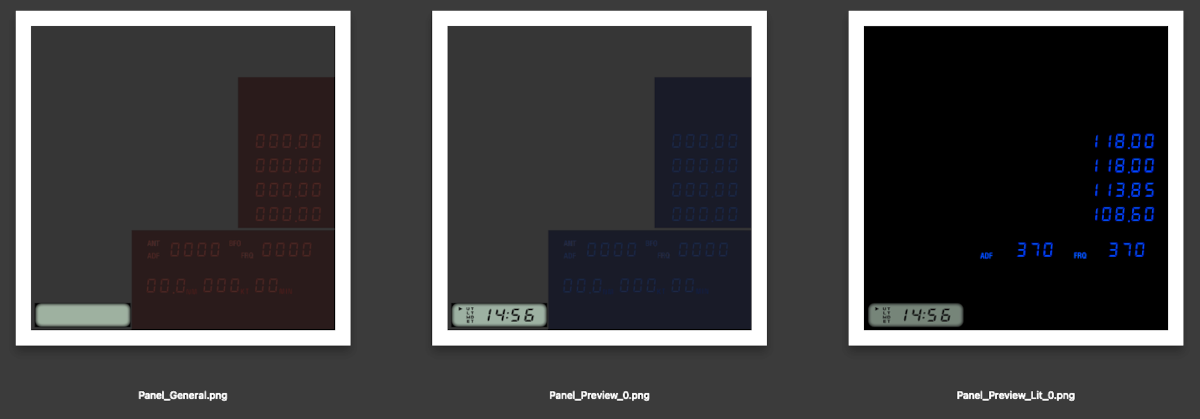
The exported texture will be named Panel_Preview and saved in the cockpit_3d folder found inside your aircraft folder. If a LIT texture is utilized, then that will also be exported out. The example image below shows the Panel texture for the Default Baron. On the left is the Base Panel Texture image already in the folder. The middle image shows the daytime version of the 3D texture and the right side image shows the LIT version of the 3D texture, both of these being generated when the commnd was executed inside X-Plane. These can now be used as a reference to UV map your 3D polygons.