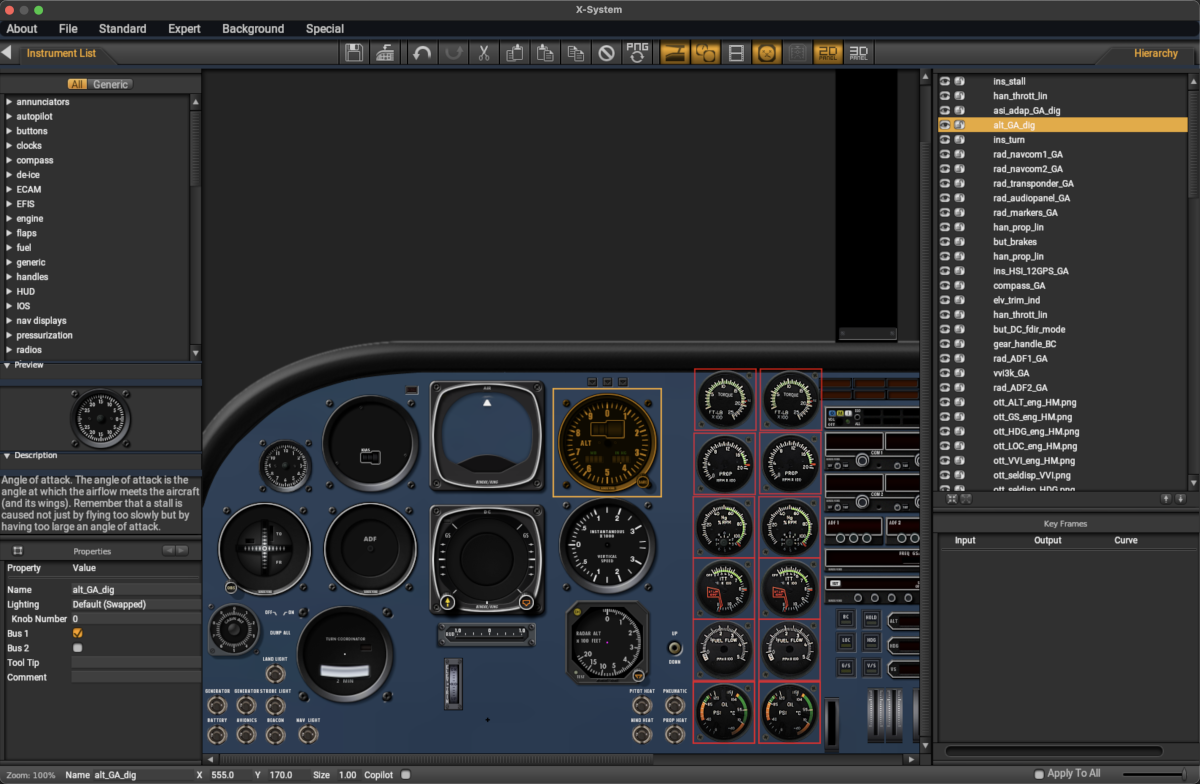
General
The 2D Panel editor is used to lay out an instrument panel intended to be used in 2D only. In order for the 2D panel to show in X-Plane, then a checkbox option to tell X-Plane to use the 2D panel must be enabled in *Viewpoint Menu > Cockpit Tab > Aircraft and Panel Visibility sub-panel. This checkbox is disabled by default. The image below shows a 2D panel in X-Plane 5 with a custom background image. 2D Panels are useful during initial flight model development and other applications where cockpit visuals are not a priority.
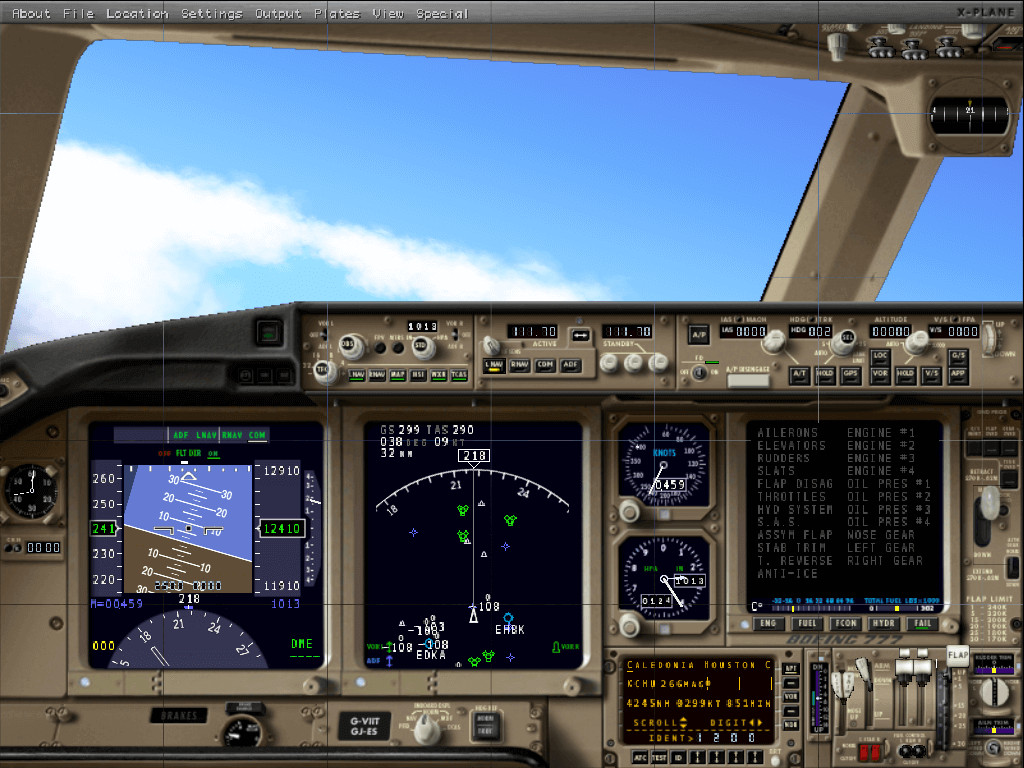
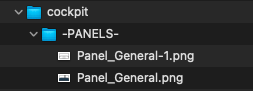
When the option to use a 2D panel is selected, then X-Plane will, by default, use the Background Image associated with the aircraft type selected in the Standard Menu > General Tab > Cockpit sub-panel > 2D Cockpit Pull-down menu. These background images have reserved names and are found in X-Plane/Resources/bitmaps/cockpit/-PANELS-/. If you wish to have a custom 2D panel background texture as shown in the above screenshot, then that texture needs to be located within your aircraft folder as shown below and with the same folder names. In addition, your texture filename must utilized the reserved name for the aircraft type selected. Most authors duplicate the appropriate background texture from the X-Plane's resource directory given above and modify it accordingly. The "dash-1" example below is used to create shadow overlays of your instrument panel, such as would be the case with glareshields.
Email Exchange on Required instruments:
Max has put a lot of buttons in there that are no longer necessary.
Here's the ones I found in the C172 or MD82 that are no longer needed to change system behavior: All the autopilot buttons - no longer necessary since you configure it through the autopilot setting screen. Fuel selector button - no longer necessary since you can configure all valid fuel positions on the Systems screen. annunciator test button - don't see how this was ever necessary audiopanel_HM.png - don't see how this was relevant rad_NavComADF_HMs.png - don't see how this was relevant but_fuel_pump_tank - no longer relevant but_fuel_pump - no longer relevant but_fire_extinguish - no longer relevant battery switch - not necessary since you configure if and how many batteries there are in the electrical settings but_generator_apu - not necessary since you configure the APU now in the System settings gpu_connected - not necessary as a button, all planes CAN get GPU power on the ground if they want to.
Here are the ones that still have behavior:
- but_avionics (Not necessary if you have FMOD sounds.) It tells X-Plane whether to play the "systems/avionics.wav" file which is a cooling fan noise when the avionics power is on. Since these kind of noises are now made by FMOD, this is not necessary unless you rely on the old X-Plane sounds.
It also tells X-Plane whether the avionics power dataref should be on or off when the plane is loaded cold&dark. The assumption is that when the button is NOT there, the plane inits cold and dark with the switch ON because the user can't turn it on if it isn't in the planel. Of course, if you override the board and start commands in a plugin, you can have the plane load however you want.
- but_flitedir_modeDC
- but_flitedir_modeSC
For some autopilot types, these are necessary to tell X-Plane whether a "flight director" exists that can be on with the autopilot servos being off. This has become somewhat obsolete since many autopilot types ignore the panel button presence and still behave like their real world counterpart, but for an X-plane autopilot (i.e. not configured to be GFC700 or another type specifically) this is still observed.
- but_map_zoom / but_map_zoom_close
They still do their job in setting up the default ND map range zoom levels. This can however be done today using the sim/cockpit2/EFIS/map_range_steps dataref which overrides whatever the panel button default is.
Philipp
These actually get you behavior that you can't get anywhere else and are really, really necessary:
- but_clutch - whether there's a clutch for a helicopter like the R-22
- but_prerotate - whether there's a clutch to prerotate a gyrocopter
These just make sure that if the button is there, the selected system behavior matches (they are not necessary to get the system behavior):
- han_sbrake_otto - if you hadn't selected it already, activates the "speedbrake arm on touchdown" function
- but_auto_brake - if you hadn't selected it already, equips the plane with autobrakes.
- but_off_run_start - if not selected already, turns on the autostart options (starter engages fuel, ignition, etc...)
Then there are ones that don't influence the system behavior or available functionality, but simply how it is initialized when the plane is loaded:
-
but_hyd_pump_elec - whether you have an electric hydraulic pump or not is selected in the hydraulic system setup, the button is there to decide whether the default initialization should be to pump off (when there's a button) or pump on (when there's presumed to be no button to turn it on).
-
but_cross_feed - makes sure crossfeed is turned off on initialization all fuel selector buttons - the presence of one that includes an "any" setting initializes the fuel system to have the fuel selector in the "any" position
-
press_bleed_air_full - absence of this button initializes a plane to have all bleed valves open