General
X-Plane models aerodynamics using a geometry based physics model, which nowadays, is generally hidden from view as is it too low resolution. In its place, we can attach 3D, visual only objects of our own creation to the physics model. This allows us to make a much more visually detailed and attractive 3D representation of the aircraft. You can attach up to 256 objects to the aircraft, though most never use that many, commonly using 30 or less.
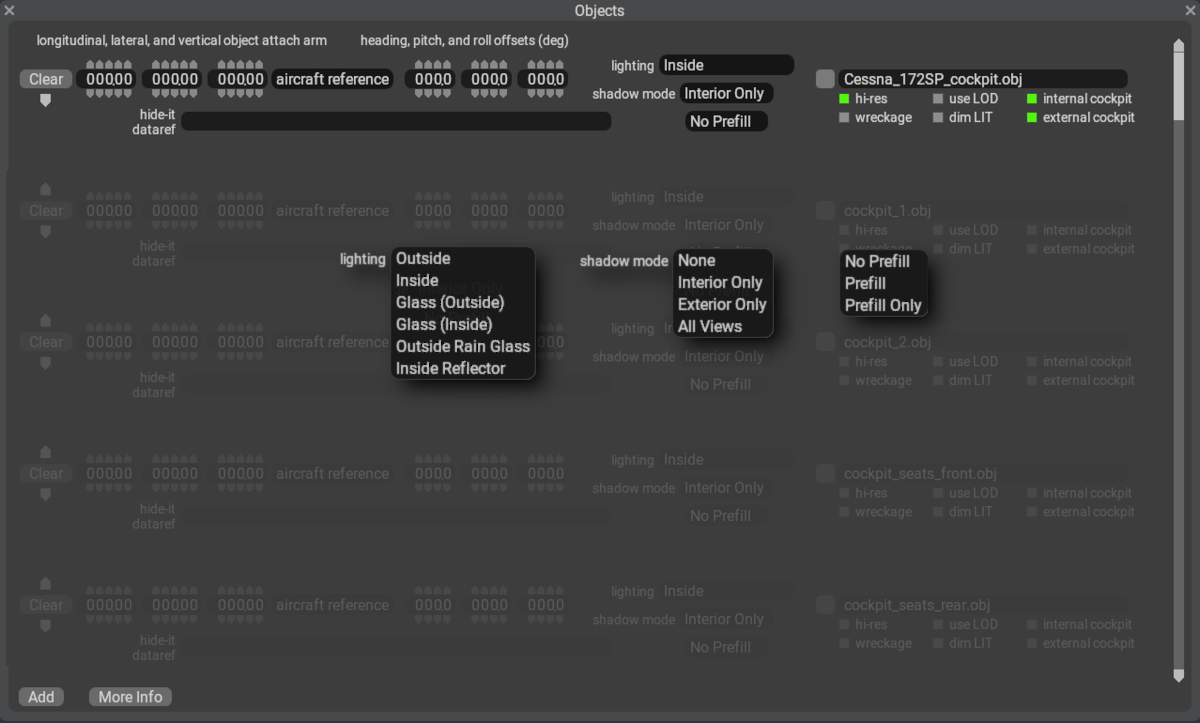
This Object Window is where you select and attach 3D objects to the flight model. These 3D objects are in X-Plane's text-based, human readable Object format, commonly referred to simply as OBJ files. OBJ files use a *.obj file extension, but should NOT to be confused with the Wavefront OBJ file format, which is not the same and cannot be used with X-Plane. Visual OBJs have NO affect on X-Plane's flight model.
X-Plane OBJ files are exported from Blender 3D, which is the de-facto standard 3D software for exporting OBJ files, and Laminar's only officially supported exporter. The OBJ exporter is an add-on for Blender, officially called XPlane2Blender (X2B) and may be downloaded here on Github. Documentation for configuring and exporting OBJ files with Blender can be found in Laminar's XPlane2Blender Documentation.
Exported OBJs for an aircraft may be located anywhere in the aircraft folder, but "the standard" is to put them in a sub-folder named objects within the aircraft folder. Within the objects sub-folder, more sub-folders may be created as desired. You will see this folder structure in default Laminar aircraft.
When OBJs are added to the aircraft via this window, then there are additional parameters that may be set on the OBJ to govern their location, orientation, visibility and rendering settings. See the popup tooltips above for descriptions of each parameter, and also refer the Modeling Geometry > 3D Objects section of this manual for more information.
Cockpit Object (special)
The “cockpit object” (the object named by the ACF plus _cockpit) normally acts like an “interior” object; a check-box will give it glass behavior. However, we recommend that you use separate objects for glass. The cockpit object is always resolution-boosted; therefore its texture should be minimized.
In X-Plane 10.10 the cockpit object features all options of the other attached objects except for resolution boost (which is always enabled.)
Note that in X-Plane 10.10 you can use the panel texture from any attached object. Therefore you can make the cockpit object non-glass and an attached texture glass and use the panel texture from both.