General
Lorem Ipsum has been the industry's standard dummy text ever since the 1500s, when an unknown printer took a galley of type and scrambled it to make a type specimen book. It has survived not only five centuries, but also the leap into electronic typesetting, remaining essentially unchanged. It was popularised in the 1960s with the release of Letraset sheets containing Lorem
3D HUD Configuration
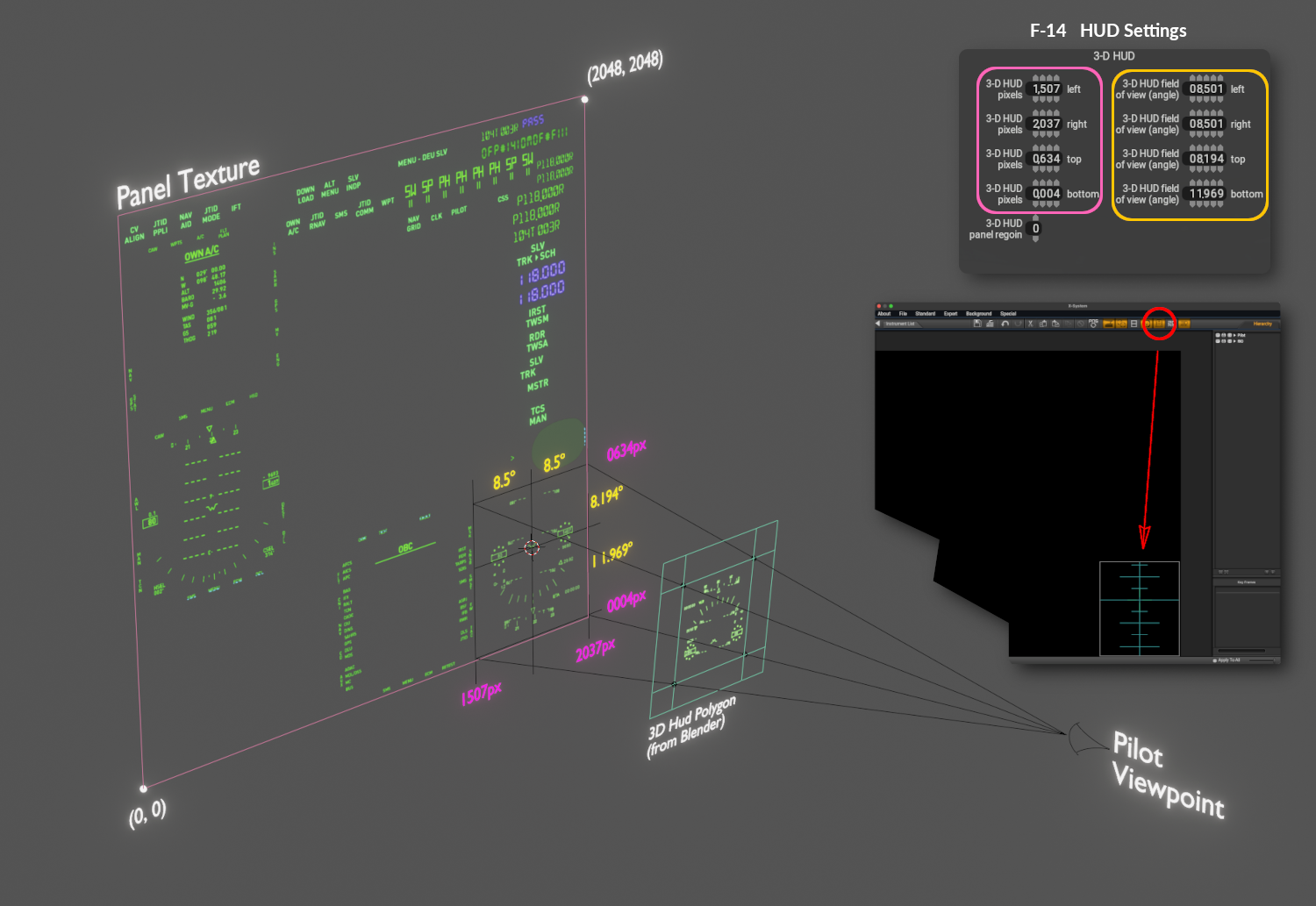
The illustration at right shows the relationship between the Panel Texture, the 3D Hud Polygon (from Blender) and the PlaneMaker settings for Laminar's F-14 3D HUD. The settings in magenta tell X-Plane where the four edges of the HUD graphics are located on the Panel Texture. The settings in Yellow tell X-Plane how to draw the HUD image at infinity relative to your HUD glass surface. Clearly the HUD needs to fit within the bounding edges of your HUD surface. These values stretch the HUD edges and are typically determined experimentally in the sim by tweaking each number until the HUD is located where you like it.
If you use Panel Regions, then you'll need to specify the Panel Region index to use, and in that case, the pixel values (magenta) will be relative to the origin of the Panel Regions and not the overall texture.
Regarding the 3D HUD surface, it does not matter if it is angled or not. From the perspetive of the camera, its just a bounding box to contain the HUD.
Finally, in PlaneMaker on the Panel Editor, you can enable the HUD Alignment Lines (red circle below) which will draw the HUD edge and angle settings according to your 3D HUD values entered.
https://developer.x-plane.com/article/x-plane-3-d-hud/
Wiper Configuration
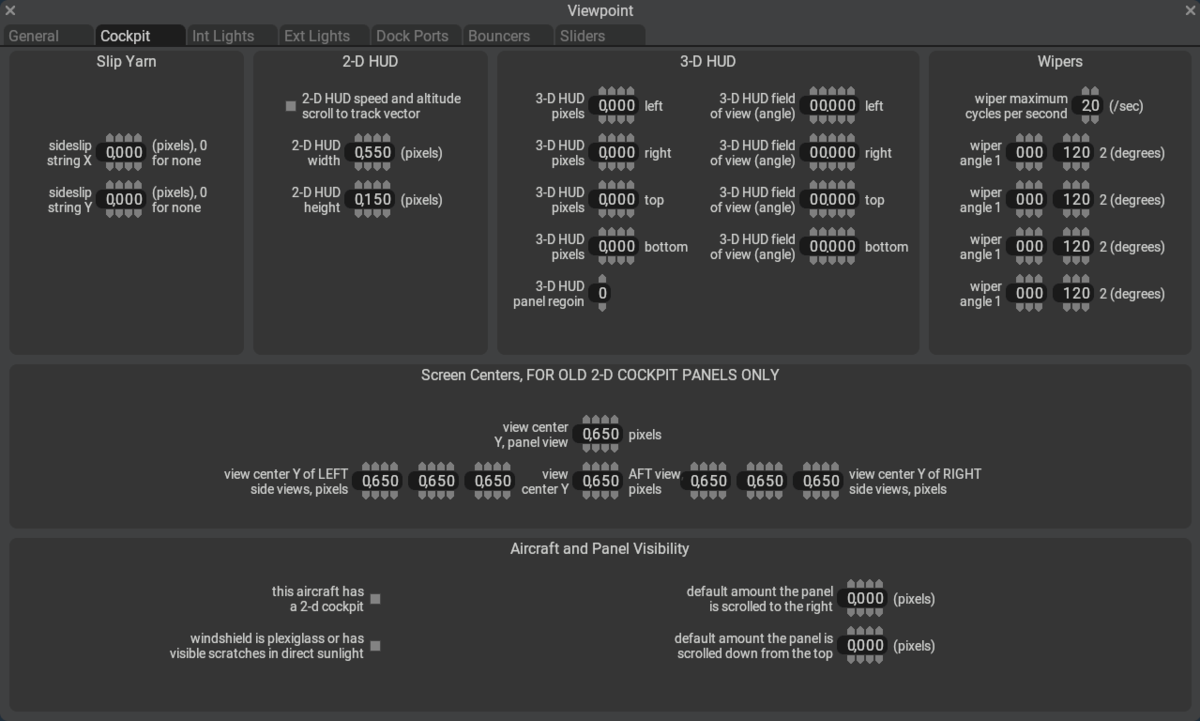
Screen Centers
Many 2D Panel Texture Backgrounds, if incorporating perspective effects such as Laminar's 2D Glider Panel Background as shown below, will portray a specific Pilot Viewpoint. The Screen-Center settings allow you to shift X-Plane's horizon line up or down relative to the Panel Texture to obtain a convincing visual relationship between the Horizon, 2D Panel and Pilot viewpoint. These values are typically established via in-sim testing with the aircraft in a 0º pitch, wings level attitude.
NOTE
For in-sim calibration of these values, you can pause the sim and use the 'M' key to bring up X-Plane's map and manually set a random altitude like 1000' as well as set the pitch to 0º. You can open PlaneMaker while leaving X-Plane open, make changes, save, and then reload the aircraft in X-Plane using the Developer Menu > Reload the Current Aircraft (Skip Art Reload) and gauge the result.
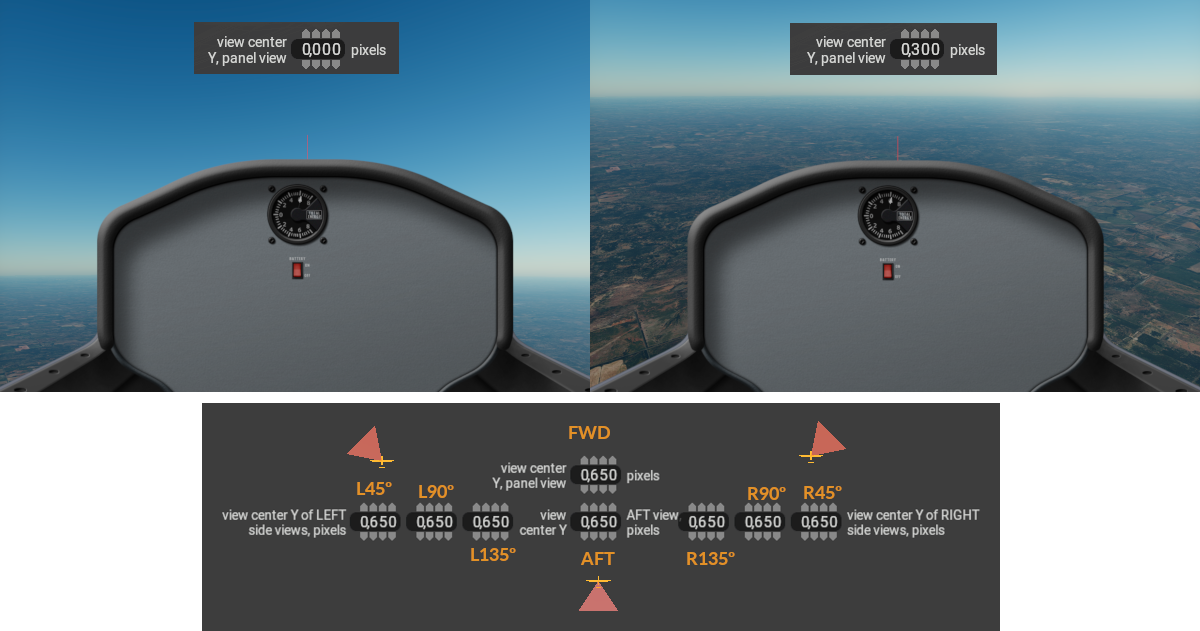
The image below illustrates the effect of these settings for the main Forward View (W key). The image at left, with 0º pitch angle and the view center set to 0,000, seems as if the glider is nose high and climbing. This is because of our Panel Background image's portrayed pilot viewpoint. A differing Background image could just as easily portray a differing perspective and then perhaps the 0,000 settings would be adequate, but for this Background Image it is not, because in this particular glider, the Pilot should be able to see the horizon well over the panel when flying level.
In the image at right, the horizon line was moved up 300 pixels. Again, in both images, the aircraft is set to 0º pitch angle. Note that the 2D panel is in exactly the same place in both images but the perception is completely different depending on where that Horizon Line is. Use these settings to establish the visual relationship between the 2D background image's "portrayed viewpoint" and the Horizon when in Level flight.
NOTE
X-Plane supports 2D background images for all 8 cardinal view angles and depending on the image used, each view may need a differing value for a convincing visual effect. You can set the horizon line location for each cardinal angle independently. Each widget's associated cardinal angle is shown above.
Vertical 2D Panel Position
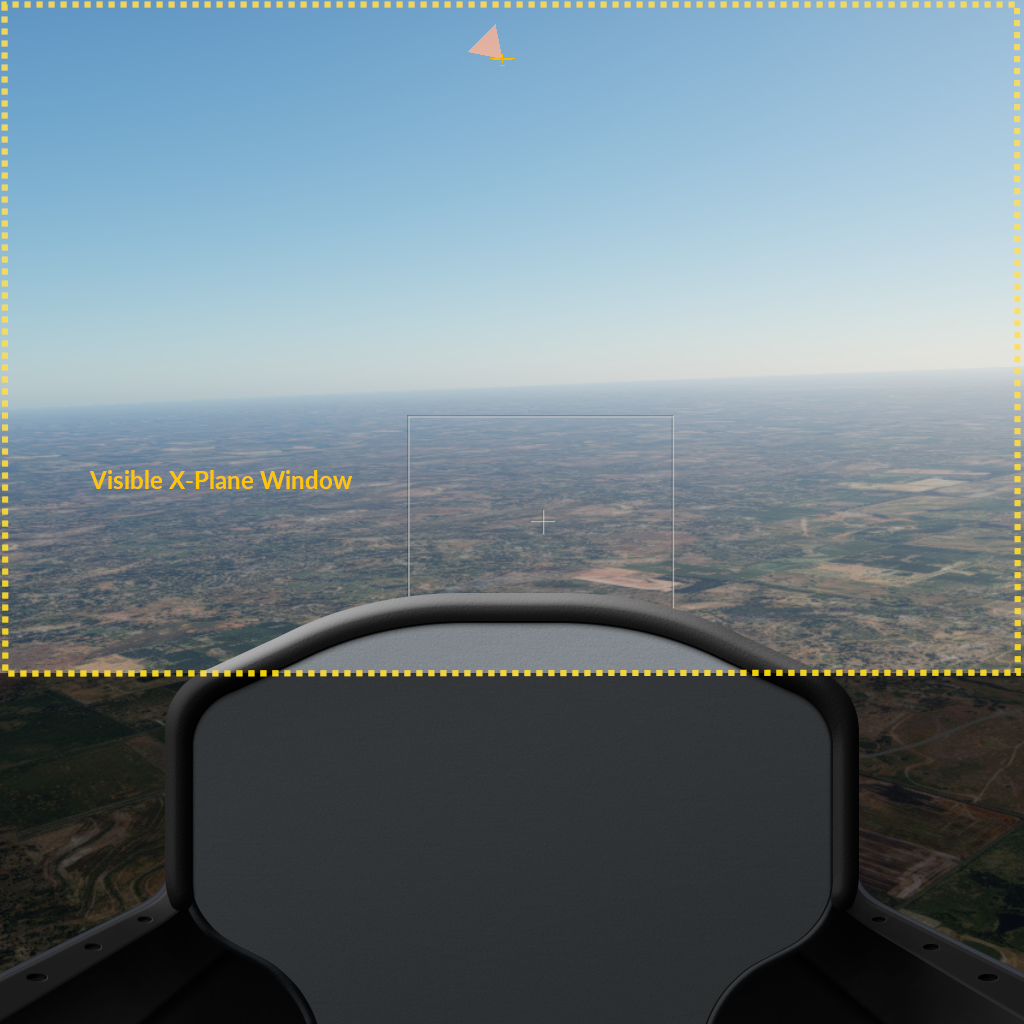
X-Plane's window can be resized to varying aspect ratios: tall, square or wide. This setting comes into play when X-Plane's window is wider than it is tall, which is to say nearly all the time. That means for square or tall aspect ratios, this setting is irrelevant.
General
Aviation Checklist